The history of our club extends all the way to our founding in 1949. We have here for you a collection of original documents in this section that detail some of the history of our club. Detailed in various papers, articles and photographs, cover the storied pas behind the American Czech-Slovak Cultural Club, they even include the rumors of Al Capone possibly being connected to the property during the height of his activity in the early twentieth century.
Club Charter – 1949
With the approval of this charter in a Dade County, FL court, on April 11, 1949 the "American Czechoslovaks Social Club" was created. In 1998, the name was changed to the "American Czech-Slovak Cultural Club" to better describe the club activities. The legal name of the club, however, remains as it is on the charter. The document shown is comprised of scanned images of the five pages of the charter i.e., the Charter Application, the Charter with signatures (3 pages) and the Charter Notarization (pdf format).
10th Anniversary History – 1959
This document (scanned images) is of an original club history that appears to have been produced in 1959 for the club's 10th anniversary celebration. Notice the photo of Dr. Alice Masaryková on the last page. Note: this file is fairly large and may be slow in loading (pdf format).
50th Anniversary History - 1999
A program produced for ACSC's 50th anniversary (still called American Czechoslovaks Social Club at the time) shows a list of all of the club presidents until that time. It also contains a list of all the Honorary Fathers and the Honorary Mothers through 1999 (pdf format).
Papers and Articles
The documents in this section cover a variety of subjects that, in some way, pertain to the American Czech-Slovak Cultural Club and its cultural objectives.
Using Windows to Create Documents in the Czech Language
An article detailing the installation and use of Microsoft Windows Multi-language Support to generate the diacritical marks necessary to create documents in the Czech language
UPDATE to Using Windows to Create Documents in the Czech Language
The UPDATE provides additional information on Windows 98 and Word 2000 issues
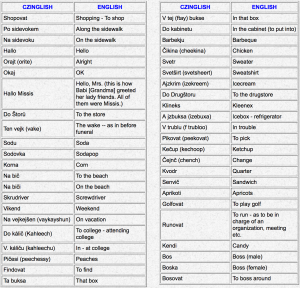
Czinglish
A reminiscent look at a Czechoslovak-American dialect used in the United States
An Email Experience in the Czech Republic or "Click on the Cz" An American Using Email in the Czech Republic
Terezin and Auschwitz
As a young man during World War II, Arno Erban, long time ACSCC member, was a prisoner at Terezin and Auschwitz concentration camps. Two articles, written by him, describe his experiences at those terrible places.
Kroj Guidelines
The National Czech & Slovak Museum & Library (NCSML) has released a set of guidelines to help Czech & Slovak pageant contestants with the selection of a kroj that they will wear for their competition. The guidelines deal with kroj history, regional details, availability, recommendations, tips and more. While these guidelines are intended for contestants they will be interesting to many as they contain a great deal of unique and hard-to-find information about kroje.
Czechs and Slovaks in Florida
A paper presented to the SVU, at Coe College, in Cedar Rapids, Iowa, by Bob Petrik in June 2003
SVU Extravaganza in Florida
A retrospective look at the 2005 SVU Conference held in conjunction with the ACSCC Heritage Festival, in North Miami, Florida.
Interactive On-Screen Czech Keyboard
A third article about using Windows to create documents in the Czech language. This article deals with the Interactive Keyboard which is part of Windows XP.
ACSCC: Exterior Art
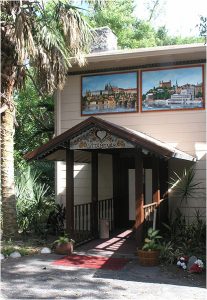
The two pieces of original artwork on permanent display on the outside of our clubhouse above the main entryway were created and donated to ACSCC by Czech artist Drahomir (Mira) Hrdbovic, of Lake Worth, in 2006. These paintings, especially designed for outdoor use, depict Prague Castle, in the Czech Republic and Bratislava Castle, in Slovakia. … Read more
The Interactive On-Screen Czech Keyboard in Windows XP
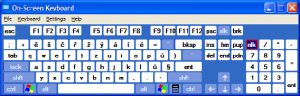
Back in 1999-2000 I wrote a couple of articles about Using Windows to Create Documents in the Czech Language. These articles were aimed primarily at the Windows 95 and Windows 98 operating systems and described how to set up Multi-language Support, and use the keyboard layouts. While all of the information in those two articles … Read more
SVU Extravaganza in Florida
Mila Rechcigl, SVU President North Miami, Florida March 2005 “Here comes the sun… always behind rain Rain brings tears, the sun warms away pain Gone now the doubts that seemed to loom ahead Now bright sunshine to fill my life instead!” The Czechs, and so do the Slovaks, have the saying “Po desti vzdy slunce … Read more
Czechs and Slovaks in Florida
By Robert Petrik Delivered to the Czechoslovak Society of Arts and Sciences on June 27, 2003, at Coe College, Cedar Rapids, Iowa. According to the 1990 census, there were 36,000 of Czech descent, 70,000 of Slovak descent and 15,000 described as Czechoslovak descent living in Florida. While it is true that few Czechs and Slovaks … Read more
Kroj Guidelines
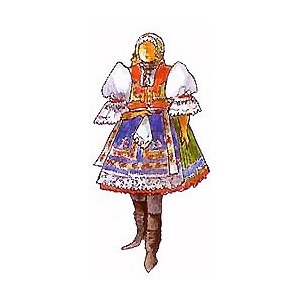
These guidelines were prepared in 2002 by Carmen Langel, Curator of the National Czech & Slovak Museum & Library and Mark Vasko-Bigaouette, Czech and Slovak Heritage Tours Inc. and Founder of the CzechoSlovak Genealogical Society International ( CGSI ). The following should be reviewed to help guide pageant contests and contestants in the selection or … Read more
Terezin and Auschwitz
Arno Erban, a long time member of the American Czech-Slovak Cultural Club, was a prisoner at both Terezin and Auschwitz concentration camps during World War II. Following are two articles, written by him, about his experiences, as a young man, at those terrible places. Terezin by Arno Erban Let’s talk about Terezin – where it … Read more

An Email Experience in the Czech Republic or “Click on the Cz”
During a recent trip to the Czech Republic I decided to send a few email notes to my family in the U.S. There was really no important reason to do it. I just thought that it would be fun for them and me. The opportunity presented itself in Brno, at the Hotel Voronez. The hotel … Read more
Czinglish
Editors note: This article was passed down through our club (see credits at the end) over the years. Unfortunately, no one knows who originated the article or when it first appeared. I do know that I remember hearing “Czinglish” used by my parents, grandparents, relatives and neighbors when I was a boy growing up in … Read more
UPDATE to Using Windows to Create Documents in the Czech Language
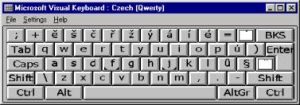
Although the article on Windows Multilanguage Support of was published in the FALL 1999 issue of Koreny it was actually written several months earlier.At the time of writing I was using Windows 95 and that is the primary viewpoint of the original article. Since that time new information on the subject has come to my … Read more
Using Windows to Create Documents in the Czech Language
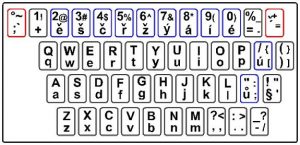
Czech Keyboard (QWERTY) Czech Diacritical Chart Installing Multilanguage Support Slovak Note Before we start, please understand that I am not an expert on the Czech language. My sole reason for writing this article is to help you make use of your computer for communicating in Czech, and without spending any extra money! The primary use … Read more
Links
If you are looking for an extensive list of Czech and Slovak Internet site links we recommend that you click on the National Czech and Slovak Museum and Library (NCSML), in Cedar Rapids, Iowa. NCSML has, perhaps, one of the most comprehensive lists of Czech/Slovak links available, and there is no point in our trying to match that great list. Instead, our list of links is limited to Czech and Slovak organizations which have been directly associated with ACSCC in some way.
The Slovak Embassy in Washington DC
The Czech and Slovak Genealogy Society, International
The Czech and Slovak American Genealogy Society of Illinois
The National Czech and Slovak Museum and Library, Cedar Rapids, Iowa
The Albin Polasek Museum and Sculpture Gardens, Winter Park, Florida
Czechoslovak Society of Arts and Sciences (SVU)
Tre Bohemes Great site, daily postings include culture, recipes, music, photography, art, places and more.
Florida.sk - Information about Florida from Slovakia (in Slovak)
The Slovak Garden, a Home for Slovak Americans Inc. - Winter Park, Florida
Worldwide Webcams, Czech Republic
Czech Events - US and Canada
An extraordinary 360 degree view of Prague
Slovak Cooking.com - lots of illustrated receipes and more..
A Guide to Slovakia - a comprehensive resource for information about Slovakia
Our Funding
The ACSCC Annual Fund provides a source of unrestricted funds for the club. Without the flexibility the Annual Fund provides, the Club simply would not be able to function. The building that would ultimately become the American Czech-Slovak Cultural Club clubhouse was built in 1926. ACSCC purchased this building and property in North Miami, FL in 1949. The age of our now historic clubhouse mandates significant maintenance to ensure safety and city requirements are met on a continuing basis. The ACSCC Annual Fund is one of the primary sources of funds to maintain our facility.
We receive the majority of our funding from membership dues, so donations are always appreciated! If you would like to help our club, please visit the donations page.

Great place to enjoy our Slovak heritage! I recommend going to any of the events they have. Authentic food, people and great family atmosphere.
I love this place, the stuff make u feel at home. Every friend I took loved it. Nice place to dance tango and meet friends.
